
The Friday afternoon nobody bills for
Every Friday, the same ritual: open the metrics sheet, copy this week’s numbers for the first client, paste them into an email, write two lines of framing, send. Then the next client. Then the next. Ninety minutes of copy-paste that produces emails your clients skim in forty seconds each — and none of it is billable. The numbers already exist in your sheet. The email format never changes. The only thing Friday afternoon actually requires from you is the copying — which is exactly the kind of work that should not require you at all.
What this workflow does every Friday
One scheduled trigger, one sheet, one email — here is what happens automatically at the end of every week:
- Every Friday afternoon, Zapier wakes up on schedule →
- It pulls this week’s rows from your Client Metrics sheet →
- It assembles the numbers into a single summary email →
- The digest lands in your inbox, ready to review and forward — or, with one extra step, each client gets their own report directly
The honest cost question — read this before building
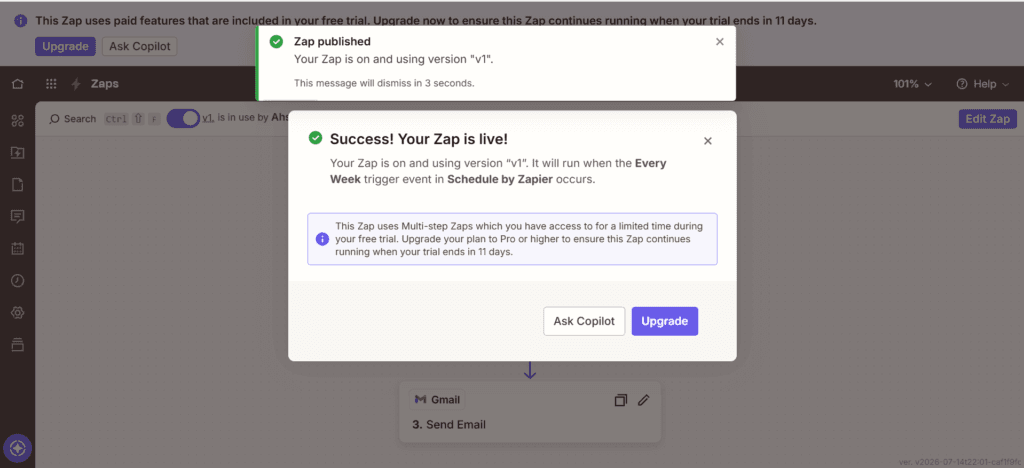
This is a three-step Zap, and three steps means multi-step, and multi-step on Zapier is a Professional feature at $19.99 a month. If you build this on a fresh free account it will work immediately — because new accounts get a 14-day trial of paid features. When I published this Zap, the banner told me plainly: the Zap uses Multi-step Zaps available for a limited time during the free trial, upgrade to keep it running. Eleven days left on the same trial clock that started when I built the Zap for our Make vs Zapier vs n8n comparison. On day one of month two, this workflow costs $19.99 a month on Zapier — or nothing at all somewhere else.
The somewhere else: this exact workflow runs free on Make. A scheduled scenario with a Google Sheets search and a Gmail send is three modules; run weekly, that is roughly 12 to 20 credits a month depending on rows — against a free allowance of 1,000. If $19.99 a month is not in the budget, build this on Make instead and every step below still applies, just with round modules on a canvas instead of a numbered list. I am showing the Zapier build because Zapier’s editor is the gentlest for a first-timer — but you deserve the bill before the tutorial, not after.
Set up the metrics sheet first
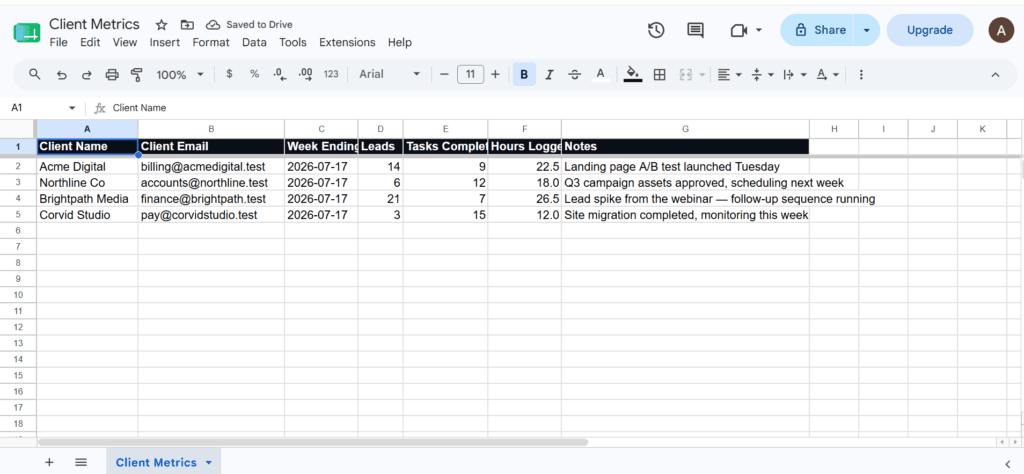
Create a Google Sheet named Client Metrics with seven columns: Client Name, Client Email, Week Ending, Leads, Tasks Completed, Hours Logged, and Notes. One row per client per week.
The system runs on one habit — the same principle as the invoice tracker: before the Zap fires on Friday, you fill in this week’s row for each client. Two minutes per client, once a week. That is the entire manual workload. The automation assembles and delivers; you supply the numbers. Miss the habit and the report sends last week’s data with this week’s date — the reporting version of reminding a client who already paid.
Building the Zap — step by step
Step 1 — Set the weekly schedule
Create a new Zap. For the trigger, search Schedule by Zapier and choose the Every Week event. Pick Friday and a late-afternoon hour — 4pm gives you time to fill the sheet after lunch and still review the digest before end of day. Zapier will not let you publish until every step has a connected account, so sign in as each prompt appears.
Step 2 — Pull this week’s rows from the sheet
Add an action, search Google Sheets, and select Get Many Spreadsheet Rows — note the full action name in your own editor, because Zapier’s Sheets list contains several near-identical options and picking a sibling by mistake changes how the data comes back. Connect your Google account, select the Client Metrics spreadsheet and worksheet, and set it to return your client rows.
Step 3 — Send the summary email (and the honest part)
Add the Gmail Send Email action. Here is what you need to know before you map the fields: this three-step design returns all your client rows as line items inside one bundle — which means one email, containing everyone’s numbers, sent to one address. That is a digest for you, not a report for each client. It is genuinely useful — your whole week’s numbers assembled and delivered — but it is not per-client delivery.
If you want each client to receive their own report automatically, you need a fourth step: Looping by Zapier, inserted between Sheets and Gmail, which runs the email action once per row and lets you map each client’s email address into the To field. That fourth step keeps you in multi-step territory — same Professional plan either way. For the basic digest, set the To field to your own address, subject line: Weekly client numbers — week ending [Week Ending], and map the line-item fields into the body.
What this looks like on Friday at 4pm
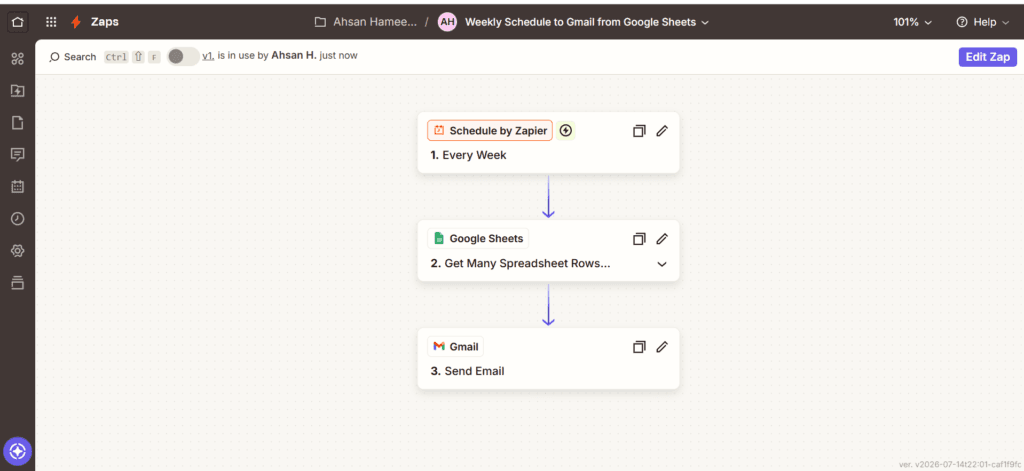
The Zap above is the whole machine: schedule, sheet, send. On Friday at 4pm, your inbox receives one email with every client’s leads, completed tasks, hours, and notes for the week. What you did that week: filled four rows, roughly eight minutes. What you did not do: open a blank email, hunt for numbers, copy, paste, format, repeat — the ninety minutes this article exists to delete. Review the digest, forward each section with a personal line if you run the digest version, or let the looped version deliver directly and spot-check the sends.
What to add next
- Add Looping by Zapier for true per-client delivery — one email per row, each client seeing only their own numbers.
- Add a Slack step that posts the same digest to your team channel, so everyone sees the week’s numbers without another meeting.
- Pipe meeting outcomes into the Notes column automatically
The honest limitations
The report is exactly as fresh as the sheet. Skip Friday’s fill and the automation faithfully sends stale numbers under a new date — worse than sending nothing, because it looks current. The two-minute habit is not optional; it is the price of everything else being automatic.
A metrics email is also not a dashboard. Clients who want charts, trends, and drill-downs need more than seven columns in a Friday email — this system replaces the copy-paste ritual, not a reporting product. And the cost is worth restating once, plainly: on Zapier this is a Professional-tier workflow at $19.99 a month after the trial. The identical logic runs free on Make. Choose with your eyes open — that choice, not any step above, is the real decision in this article.
