
The proposal ritual that wastes your Fridays
It happens every Friday afternoon. You close a deal on a sales call, open last month’s proposal, find-and-replace the client’s name, copy the new scope into a blank Google Doc, reformat the line items, manually craft an email, and set a calendar reminder to follow up in three days. You have repeated this exact sequence forty times. Because every step in this sequence is completely rigid, predictable, and rule-based, this workflow is identical every time — which is precisely the condition that makes it automatable.
What this workflow does when a deal moves forward
Instead of spending 45 minutes manually assembling documents after a successful sales call, this automation executes in the background the moment a deal advances in your CRM pipeline. Here is the exact end-to-end flow:
- A deal moves to your target stage in HubSpot →
- Make.com pulls the deal’s client name, company, scope, and value →
- A new Google Doc is generated from your proposal template with the fields populated →
- The doc link is shared with the client’s email address →
- A personalized email goes out with the proposal link →
- The HubSpot deal is updated to show the proposal was sent
What you need before you build
Setting up this workflow requires zero custom code and relies on core tools your agency likely already uses:
| Tool | Purpose | Cost / plan details |
| Make.com | Workflow automation — connects all five tools | Free tier: 1,000 credits/month. This workflow uses 5 credits per proposal (5 modules × 1 credit each). |
| HubSpot | CRM deal tracking and client data source | Free CRM tier works. Account from our Make.com onboarding tutorial already connected. |
| Google Workspace | Document generation, file hosting, email delivery | Google Docs + Drive + Gmail — free Google account or standard Workspace tier. |
One thing this workflow does not include: legally binding e-signature. This automation generates and delivers a reviewable Google Doc. For signature collection, you need a dedicated e-signature tool — as covered in our stack audit, where we examined DocuSign and its alternatives.
Set up the proposal template first
Create a Google Doc named Proposal Template — Agency. Write a one-page structure with these five merge fields in double curly braces — Make.com reads them as variables and replaces them when the scenario runs:
- {{client_name}} — primary client contact name
- {{company_name}} — client organisation name
- {{project_scope}} — scope of work and deliverables
- {{total_value}} — project investment or retainer amount
- {{proposed_start_date}} — estimated project kickoff date
Make.com’s tag replacer is strictly case-sensitive — the variables above must match exactly what you type in the template, lowercase with underscores. A mismatch produces a raw tag in the output document instead of the value.
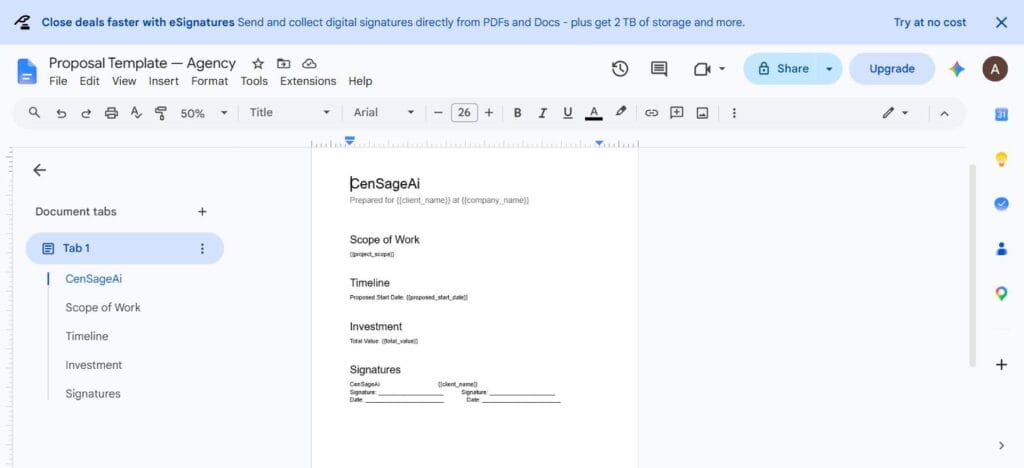
Keeping the template in Google Drive rather than generating structure from scratch each time gives you speed, visual consistency, and brand control. Update the template file when your logo or terms change — the automation inherits the change automatically without touching the Make.com scenario.
This approach works well for standard service agreements and productized packages. Complex custom proposals with bespoke technical specifications still benefit from a human review before the email goes out.
Building the scenario in Make.com — step by step
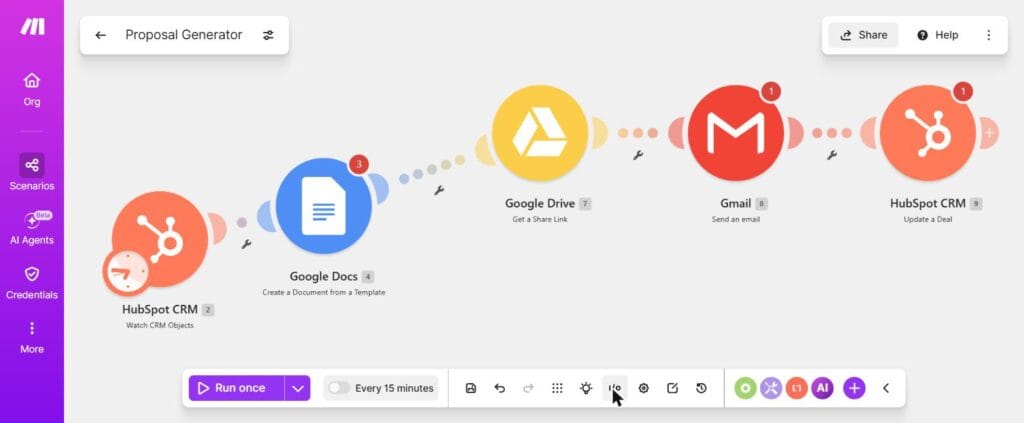
Create a new scenario, name it Proposal Generator, and add the five modules below. Credit math: 5 modules × 1 credit each = 5 credits per proposal sent. At 20 proposals a month, that is 100 credits — 10% of the free tier’s monthly allowance.
Module 1 — HubSpot CRM: Watch CRM Objects
Add HubSpot CRM and select Watch CRM Objects. Choose Deals as the Object Type, and specify which output properties to fetch — Deal Name, Deal Amount, Primary Contact Email, Associated Company Name, Deal Stage, and your custom Scope of Work field. There is no stage filter inside this module’s configuration panel. To limit the scenario to a specific pipeline stage, add a Make.com Filter on the route line immediately after the trigger — set the condition to check whether the incoming Deal Stage matches your target (such as Proposal Requested).
Module 2 — Google Docs: Create a Document from a Template
Add Google Docs and select Create a Document from a Template — Make.com’s exact name for this action. Connect your Google account and select your proposal template from Drive. Map the HubSpot deal fields to the template variables: Deal Contact Name → {{client_name}}, Company → {{company_name}}, Scope field → {{project_scope}}, Deal Amount → {{total_value}}, Start Date → {{proposed_start_date}}. Name the output document dynamically — Proposal – {{company_name}} – {{date}} — and set a destination folder in Drive for the generated files.
Module 3 — Google Drive: Get a Share Link
Add Google Drive and select Get a Share Link. Map the Document ID output from Module 2 into the File ID field. This module produces a web-viewable URL for the newly created document. It does not set sharing permissions — it returns a link that the Gmail step will carry to the client. Save the share link output; it connects to both Module 4 and Module 5.
Module 4 — Gmail: Send an Email
Add Gmail and select Send an Email. Map the primary contact email from HubSpot into the To field. Set the subject: Proposal and Agreement — {{company_name}}. In the message body, write a short note with the client’s name and the share link from Module 3. A direct link in the body is cleaner than a file attachment and avoids spam filter triggers.
Module 5 — HubSpot CRM: Update a Deal
Add HubSpot CRM and select Update a Deal. Map the original Deal ID from Module 1. Update the pipeline stage to Proposal Sent, and write the share link from Module 3 into a custom deal property named Proposal Document Link. The HubSpot record now reflects the proposal status without anyone touching the CRM manually.
What this looks like when a deal progresses
When a deal moves into your target stage in HubSpot, three things happen automatically:
- What appears in Google Drive: a new, formatted Google Doc in your proposals folder — named Proposal – Acme Digital – July 2026 — with all client details, scope, and investment figures populated from the CRM.
- What the client receives: a clean email from your Gmail address with their name in the greeting and a direct link to view the proposal. No attachments, no forwarding, no manual writing.
- What changes in HubSpot: the deal stage updates to Proposal Sent, and the proposal link is stored in the deal record — visible to anyone on the team who opens the deal card.
What to add next
- Automated follow-up nudge: add a Delay module set to 72 hours, then a second Gmail module that sends a follow-up message to the client. The Delay pauses the scenario for 72 hours and then fires the second email automatically — this is the same follow-up principle as our invoice follow-up workflow, applied to proposals.
- Team Slack notification: add a Slack module after Module 4 to post in your agency’s proposals or sales channel whenever a proposal goes out — using the client channel system from our communication guide.
- Legally binding e-signatures: connect Dropbox Sign or DocuSign after the client has reviewed the doc, converting the Google Doc proposal into a signed contract — covered in our stack audit.
The honest limitations
This scenario generates a proposal draft. For standard service engagements it can go out as-is; for non-standard scopes, a 10-minute review before the email fires is worth building into the process. Automation is a drafting assistant here, not an autonomous sender — the quality check is still yours.
The merge field mechanism also reflects exactly what is in your CRM. Empty deal fields produce empty template variables: a raw {{project_scope}} tag in the document rather than scope text. Maintaining disciplined CRM data entry — the same stale-data principle from our Make.com onboarding workflow — is what keeps the output clean. The automation is only as accurate as the data it reads.
