
The client relationship that just fades out
Most client engagements don’t end with a dramatic contract termination. Instead, they simply drift to a quiet close. A final deliverable is approved, a retainer completes its cycle, or a client stops requesting new work. Because there is no formal exit event, nobody performs a clean wrap-up. Project folders linger in active Google Drive directories, Slack channels sit idle for months, and third-party access permissions remain wide open. Six months later, you are paying for unused storage, cluttering team dashboards, and leaving security gaps open for accounts that wrapped up in March.
What this workflow does when a client relationship ends
When an agency automates client onboarding, the focus is speed and impression. Offboarding requires the opposite focus: thoroughness and security. This workflow automates the administrative wind-down the moment an account is marked for offboarding in your CRM.
- Deal stage updated in HubSpot to Offboarding →
- Project folder archived in Google Drive →
- Closure notification posted in Slack →
- Offboarding summary logged in Google Sheets →
- Record status updated in HubSpot to Closed — Inactive
By chaining these modules together, your administrative close happens automatically within seconds of a single CRM stage update.
What you need before you build
Because this workflow is the direct bookend to our proposal and onboarding automation, every connection required for this scenario reuses platforms you have already configured. No new subscriptions or API keys are needed.
| Tool | Connection | Role in workflow |
| Make.com | Core platform, free or Core plan | Hosts and executes the 5-module scenario |
| HubSpot | Reused connection from onboarding build | Triggers offboarding and updates final deal metadata |
| Google Drive | Reused connection | Relocates the client folder from Active to Archive |
| Slack | Reused connection from communication build | Posts an automated wind-down message to the client channel |
| Google Sheets | Reused connection | Appends an audit entry to a central offboarding log |
This scenario consists of five modules. Each time a client is offboarded, the workflow uses exactly 5 Make.com credits. For an agency offboarding 5 to 15 clients a month, the total operational cost is under 75 credits — an insignificant fraction of any standard Make.com plan.
The one decision to make before automating this
Before opening Make.com to drag modules onto the canvas, answer one operational question: what official condition defines a client as offboarded?
Offboarding cannot be triggered by a vibe or a casual comment in a team meeting. If your trigger condition is ambiguous, one of two breakdowns happens. Premature execution: the automation fires while work is still technically active, moving project files out from under an account manager and posting a premature closure notice in a live client channel. Or non-execution: the team forgets to update the system because the trigger relies on a non-standard field, leaving the automation dormant while administrative drift continues unchecked.
To eliminate this ambiguity, create a dedicated pipeline stage or explicit deal status in HubSpot — a stage titled Offboarding or Closed — Inactive. Make it a firm internal rule that moving a deal into this stage is an intentional, point-of-no-return decision. Once that boundary is clear, the automation executes reliably every time.
Building the workflow in Make.com — step by step
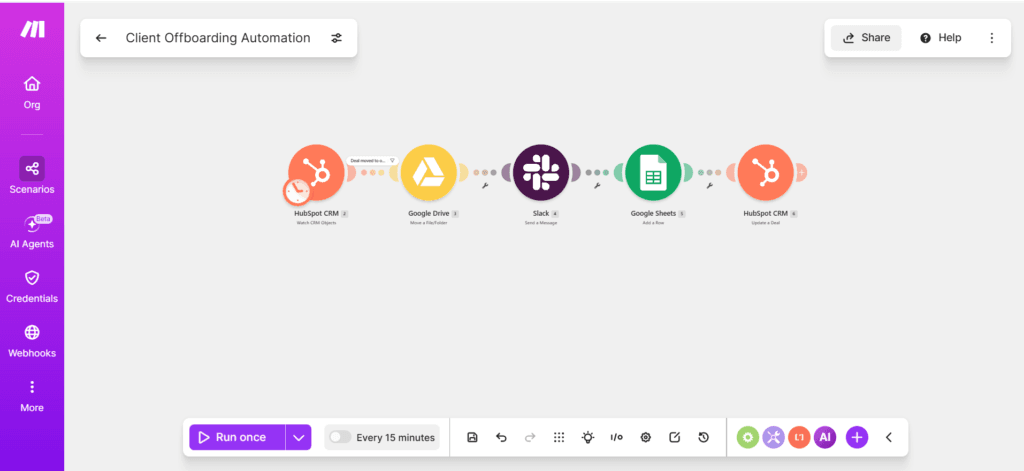
Step 1 — HubSpot: Watch CRM Objects
The workflow begins by monitoring HubSpot deal records for updates. Set the module to watch Deals, and specify the output properties you need: Deal Name, Deal Stage, Amount, Pipeline, and the associated contact or company ID.
Just as with our onboarding setup, HubSpot’s Watch CRM Objects module triggers on any update to a CRM object — it does not let you filter by pipeline stage directly inside the module configuration. To prevent this scenario from executing on every ordinary deal edit, add a Make.com Filter immediately after this trigger module. Set the condition: Deal Stage equal to Offboarding, or the corresponding HubSpot stage ID.
Step 2 — Google Drive: Move a File/Folder
Once the filter confirms the deal has entered the offboarding stage, the workflow locates and archives the client’s project assets. Map the File/Folder ID dynamically using the client’s folder ID stored in HubSpot, or search by folder name matching the deal name. Set the target folder to your designated archive directory.
This operation removes the folder from your team’s active shared workspace without deleting any assets — it keeps the daily working drive clean while preserving a full historical record.
Step 3 — Slack: Send a Message
Notify the team and client point of contact that the engagement is officially winding down. Map the channel dynamically to your client’s channel, matching the naming convention from our client communication system — client-[name], lowercase, hyphenated. Build the message to state clearly: administrative offboarding has been triggered, the project folder has been moved to archive, final logs have been generated, and the team should follow the standard checklist for revoking any third-party tool access. Note that the channel itself will be queued for archival.
Step 4 — Google Sheets: Add a Row
To maintain a lightweight, permanent record for finance and operations, append an entry to a central tracking log. Log the client name, the offboard date and time, the pipeline value at close, and a status of Completed. This sheet becomes the single place to check when anyone asks how many clients offboarded last quarter.
Step 5 — HubSpot: Update a Deal
Close the loop in the CRM by updating the deal record to reflect that administrative offboarding is complete. Map the record ID from Step 1, set the deal stage to Closed — Inactive, and write the offboarding date and a status of Fully Offboarded into custom properties. The deal record now tells the full story without anyone opening five different apps to reconstruct it.
What happens when a client relationship closes
Once this scenario is active, the messy administrative drift of ending a client relationship is replaced by consistent, instant execution.
- Drive storage stays organized automatically: active project folders disappear from the day-to-day work environment, and search results stay focused on current clients only.
- The team gets a clear signal in Slack: the closure notice lands in the client’s channel, aligned with our client communication system, removing any ambiguity about whether additional deliverables or revisions should still be produced.
- A complete audit trail exists without manual work: an automated entry in Google Sheets and an updated HubSpot record replace ten minutes of copy-pasting dates and statuses across separate apps.
What to add next
- Automated feedback request email: add a delay module — three days after offboarding — followed by an email step sending a short exit survey. Feedback gathered while the engagement is still fresh is more useful than feedback gathered months later.
- Manual access revocation checklist: some platforms — client-hosted servers, proprietary analytics tools, third-party ad accounts — can’t be safely disconnected through an API. Document these manual steps clearly using our workflow documentation guide, so revoking access doesn’t depend on one person remembering the full list.
- Direct Slack channel archival: check whether Make’s Slack integration includes a native channel archival action, or whether this needs a direct HTTP request to Slack’s API — worth testing before you build it in, since posting the closure notice and actually archiving the channel are two separate steps in this version of the workflow.
The honest limitations
This workflow automates the administrative close, not the relationship close. Sending a final invoice, moving Drive folders, and updating CRM fields are operational tasks. They do not replace a thoughtful offboarding call, a genuine thank-you message, or a graceful exit conversation. Automation should clear away the administrative clutter so you have more mental bandwidth for the part that actually matters — closing the relationship well.
And the entire workflow depends on human discipline at the trigger point. If an account manager finishes a project but leaves the HubSpot deal sitting in an active stage, Make.com will never know the account has ended. Automation standardizes execution once the decision is made; a human still has to make the decision.
