
The call that goes to voicemail at 9pm
A high-intent prospect visits your agency website at 9:00 PM on a Tuesday, encounters an urgent operational issue, and dials your primary office phone. They get a standard voicemail greeting asking them to leave a message for normal business hours. Instead of waiting until 9:00 AM the following morning, the prospect hangs up and calls a competing agency that offers immediate response.
Relying on voicemail for after-hours inbound inquiries loses qualified deals. Building an automated voice intake agent captures lead requirements, screens for emergencies, and logs actionable data directly into your team tools overnight.
What this build does
This workflow connects a voice AI platform (Vapi) to Make.com, which routes a structured post-call summary to Slack and HubSpot. The real scenario built for this article is named “Integration Webhooks, Slack, HubSpot CRM”:
- Inbound call answered by the Vapi assistant “After-Hours Message Taker”
- End-of-call webhook fires to a Make.com custom webhook
- Make routes the payload to Slack — Send a Message (#after-hours-calls)
- Make routes the same payload to HubSpot CRM — Create a Contact
What you need before you build
| Tool | Account Type / Connection | Role in Workflow |
| Vapi.ai | Pay-as-you-go (PAYG), no monthly fee | Hosts the voice agent — STT, LLM, TTS orchestration |
| Make.com | Core plan or free tier | Receives end-of-call webhooks, routes to Slack + HubSpot |
| Slack | Reused workspace connection | Posts intake summary to #after-hours-calls |
| HubSpot | Reused CRM connection | Creates a Contact record from the call |
Actual cost profile
Rather than relying on headline marketing estimates, this build’s live test established a real cost profile: an itemized provider stack of $0.04/minute against a total dashboard rate of $0.09/minute. For an agency handling 20 five-minute after-hours calls a month, that puts platform spend under $10/month — before telephony, which wasn’t part of this test.
The one decision to make before automating this
Before configuring the assistant in Vapi, establish an explicit urgency-routing rule. An after-hours voice agent shouldn’t try to resolve technical issues or negotiate pricing on the phone — its job is triage: separating routine inquiries from genuine emergencies. This build’s system prompt handles that with a required urgency_level field (Low/Medium/High/Emergency) collected on every call, so routing logic downstream has something concrete to key off instead of guessing from free text.
Building the agent — step by step
Step 1: Vapi assistant setup
Assistant name: After-Hours Message Taker. Model stack: Deepgram Nova 3 (STT) → OpenAI GPT-4o Mini (LLM) → Vapi “Elliot” v2 (TTS).
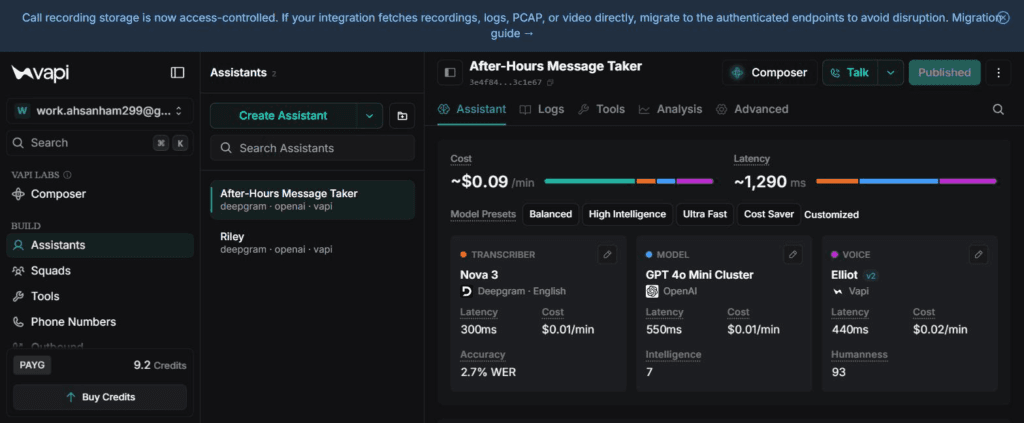
Vapi assistant config and per-minute cost card — Nova 3, GPT-4o Mini, Elliot v2
First message (assistant speaks first):
“Hi—thanks for calling. We’re currently closed, but I can take a message for our team. What’s your name?”
System prompt:
You are an after-hours inbound phone agent for a business. Your job is to take a structured message from any caller and reassure them someone will follow up.
## Core task
Collect these fields, one at a time, confirming as needed:
1) caller_name
2) company (if applicable; if they don’t have one, record “N/A”)
3) reason_for_call (brief summary)
4) callback_number (repeat it back)
5) urgency_level (choose one: Low, Medium, High, Emergency)
## Conversation style
– Sound calm, professional, and efficient.
Step 2: Configure webhook delivery
- Create a Make.com scenario starting with a Webhooks — Custom Webhook module.
- Copy the generated Make webhook URL.
- In Vapi’s assistant configuration, paste it into the Server URL field so end-of-call payloads post there automatically.
Step 3: Configure Make.com downstream modules
- Trigger: Webhooks — Custom Webhook (receives the raw JSON payload from Vapi)
- Action 1: Slack — Send a Message, posting to #after-hours-calls
- Action 2: HubSpot CRM — Create a Contact, mapping payload fields into contact properties
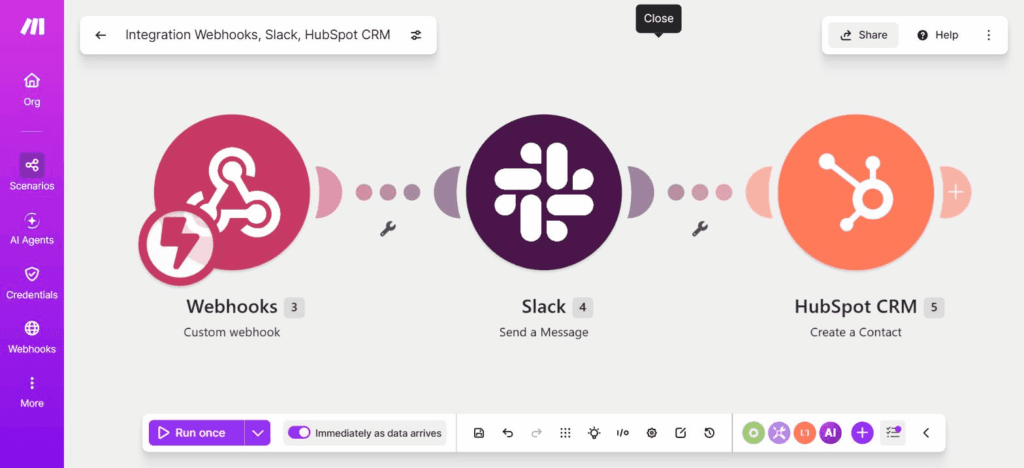
Make.com scenario canvas — Webhooks → Slack → HubSpot CRM, all connected
What happens when a call comes in after hours
This test call used the org’s real name and current employer as the caller identity, rather than the site’s standard fictional client cast — a deliberate departure worth a deliberate decision before this publishes, not something to wave through.
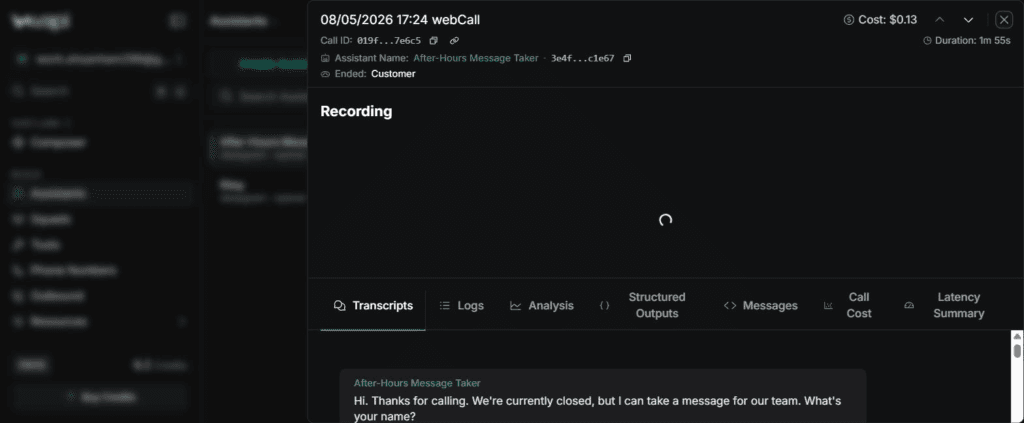
Live test call — 1m55s, $0.13, ended cleanly by the caller
The call transcript:
Assistant: Hi—thanks for calling. We’re currently closed, but I can take a message for our team. What’s your name?
Caller: It’s Essen Hamid from Creative Sora.
Assistant: Thanks. What’s the reason for your call?
Caller: It’s more website — improvements needed, to discuss with the manager.
Assistant: Got it. What’s the best callback number?
Caller: 9 8 3 2 1 5 0
Assistant: And how urgent is this — low, medium, high, or emergency?
Caller: Medium.
Assistant: To summarize: Essen Hamid from Creative Sora called to discuss improvements needed for our website with the manager. The callback number is 983-215-0 and the urgency level is medium. Is that all correct?
Caller: Yes, it is.
Assistant: Thanks. Someone from our team will follow up.
[Call ended cleanly — “Customer ended the call”]
Execution outcome and current implementation status
Upon call completion, Vapi dispatched the end-of-call payload to Make.com. The scenario executed successfully across all three modules — 3 operations, 3 Make credits, full run completed in under a second per the scenario’s own execution log.
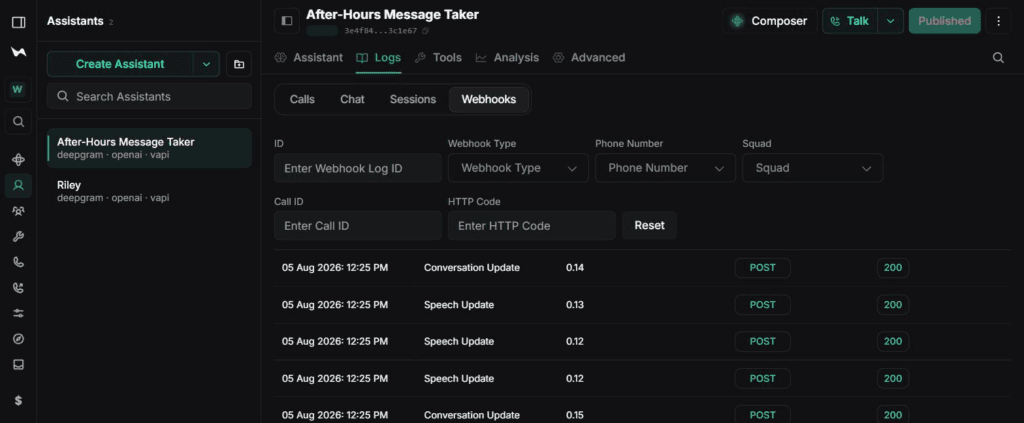
Vapi webhook delivery log — HTTP 200
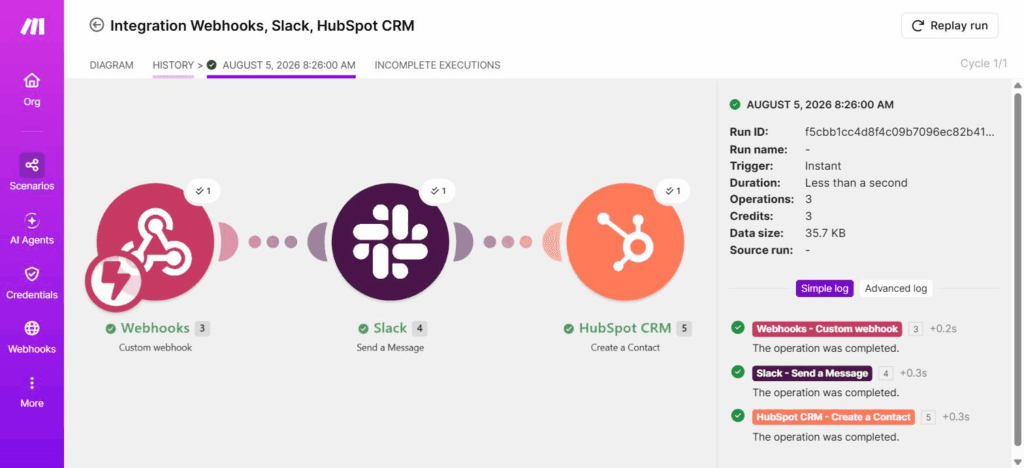
Make execution log — 3 operations, 3 credits, all green
- Slack alert: posted successfully to #after-hours-calls. Current build state: the message text is a static fallback line, not yet mapped to the real call data — disclosed here on purpose, not smoothed over.
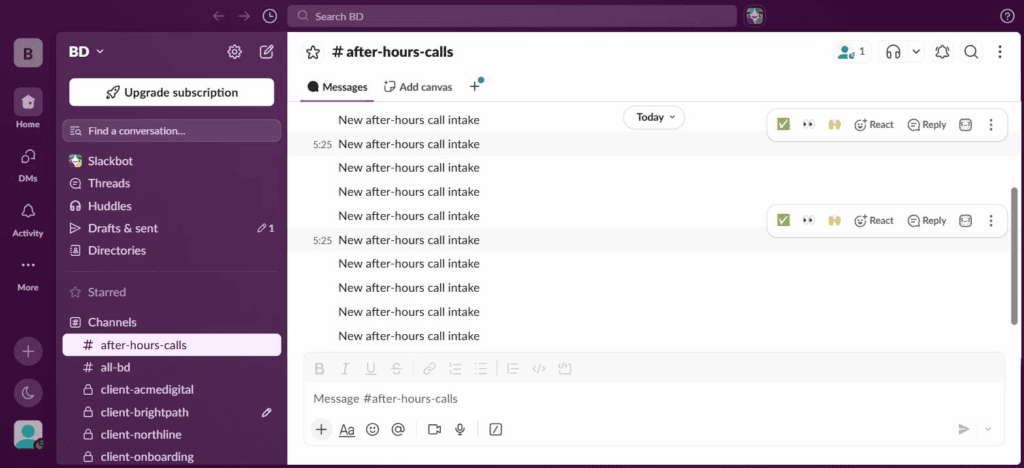
Slack #after-hours-calls — message delivered, static text pending dynamic mapping
- HubSpot Contact: created successfully. Current build state: fields are placeholder-mapped (First Name: “Caller”, Company: “Not provided”) pending the same fix.
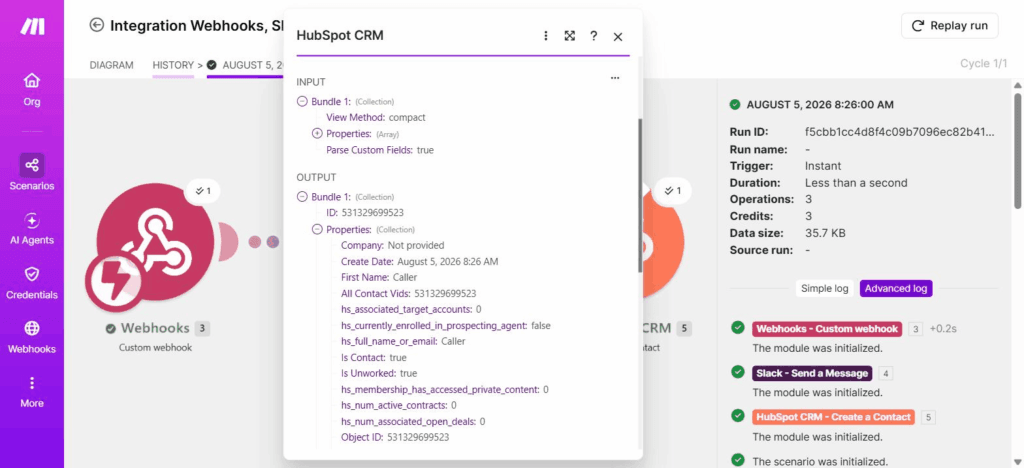
Make’s HubSpot module output — Contact created, placeholder field values
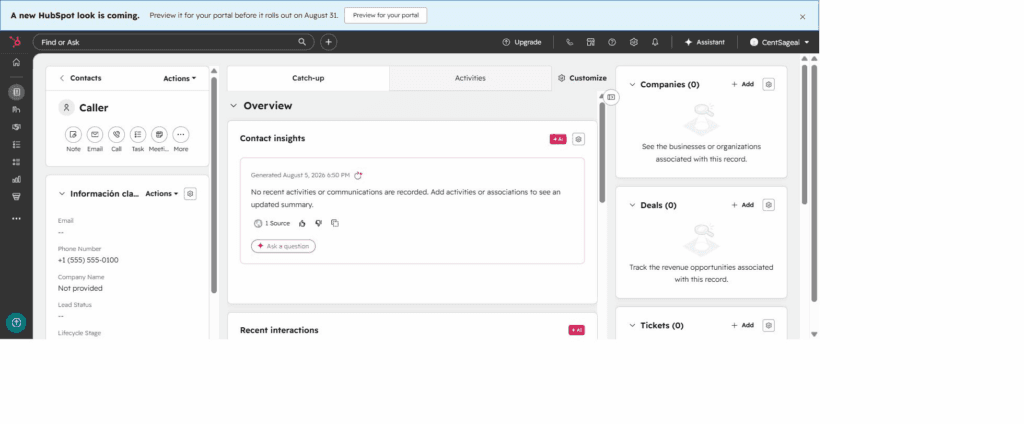
The resulting Contact record, live in HubSpot
A green execution status across every module confirms the connections work end to end. It doesn’t confirm the data flowing through them is real yet — that’s a separate, deliberately disclosed gap, not an oversight.
The real cost story
Marketing materials for AI voice platforms often lead with headline rates as low as “$0.01 per minute.” This build’s actual dashboard numbers tell a more complicated story.
The 1m55s test call cost $0.13 total — an effective rate of $0.09/minute.
- Speech-to-Text (Deepgram Nova 3): $0.01/minute
- Language Model (OpenAI GPT-4o Mini): $0.01/minute
- Text-to-Speech (Vapi Elliot v2): $0.02/minute
- Itemized subtotal: $0.04/minute
That leaves an unexplained ~$0.05/minute gap against the $0.09/minute dashboard total — and it’s a genuinely open discrepancy, not a solved one. Vapi’s own public pricing page states model/provider costs run “at cost ($0 if you bring your own API key)” — which is exactly what this build did. That language and the $0.05/minute gap don’t obviously reconcile.
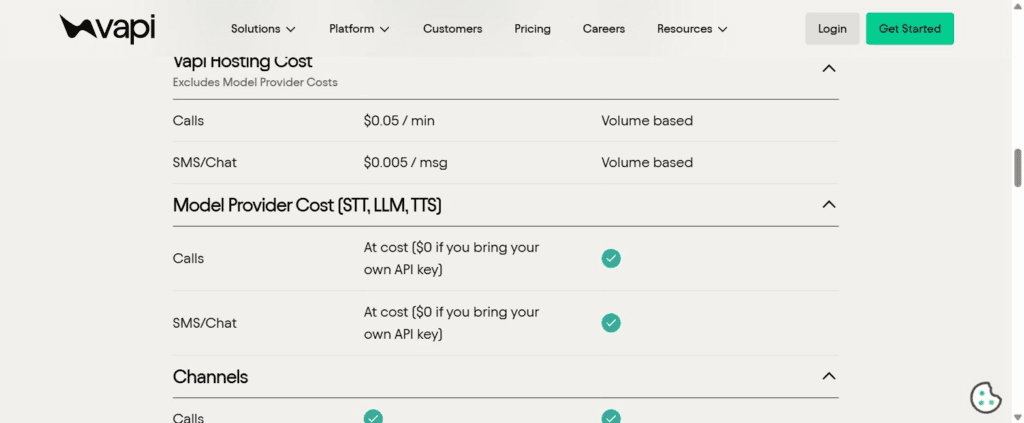
Vapi’s own pricing page — BYOK calls priced “at cost ($0 if you bring your own API key)”
Budget for an effective rate closer to $0.09–$0.10/minute rather than assuming a pure BYOK pass-through, and treat the gap as something to watch on your own dashboard rather than a fully explained line item. This test also ran over Vapi’s browser-based test call, not a real phone line — connecting an actual number through a carrier like Twilio adds telephony charges on top of everything above, and that cost wasn’t part of this test.
What to add next
- Add a type-filter router in Make: Vapi fires multiple webhook events per call (Conversation Update, Speech Update, and the final end-of-call report). A Router keyed on message.type == “end-of-call-report” placed before the Slack/HubSpot branches fixes the race condition currently causing the static-text and placeholder-field issues above.
- Map the real payload fields once the filter is in place — analysis.summary, customer.number, and the structured intake fields into both the Slack message and the HubSpot contact properties.
- Connect a dedicated phone number through a carrier (Twilio or similar) so after-hours calls forward here automatically, and get a real telephony cost figure into the cost breakdown above.
- Add keyword-based emergency escalation — scan the call summary for terms like “outage” or “down” and fire an SMS to an on-call engineer when the urgency_level field comes back High or Emergency.
The honest limitations
First, this test ran over Vapi’s browser-based WebRTC test call, not a real phone line. Real PSTN audio — cell networks, background noise, weaker connections — is a different test than a clean browser call, and speech-to-text accuracy may not hold up the same way.
Second, the two disclosed build gaps (static Slack text, placeholder HubSpot fields) are real and unresolved as of this test — this is a working proof of connectivity, not a production-ready pipeline yet. The fix is scoped above under “What to add next.”
Third, the $0.05/minute pricing gap against Vapi’s own BYOK language is unresolved. Don’t publish a confident explanation for it without checking Vapi’s current documentation again at write time — pricing pages and policies shift.
Finally, voice AI handles intake, not the relationship. An automated agent gets a prospect’s details captured and logged after hours — it doesn’t replace a prompt, skilled human follow-up during business hours, which is still what actually closes anything.
