
The Friday timesheet problem
Every Friday afternoon the same sequence plays out. You send the chase email asking the team to fill in their hours. Half the team submits Thursday night from memory, one person submits Monday morning backdating the whole week, and one person does not submit until you follow up a second time. By the time the data reaches an invoice it is three days old and wrong in at least two places. The problem is not the team — it is a system that depends on everyone remembering at the same time, every week, without fail. No system that relies on uniform human memory across a team survives contact with a real workload.
What this workflow does every Friday at 4pm
Five modules, one scheduled run, zero chase emails:
- Every Friday at 4pm, Make.com wakes up on schedule →
- It pulls all time entries logged in Clockify for the current week →
- A numeric Aggregator rolls the entries up by project →
- Google Sheets logs one summary row per project for the week →
- Slack posts the weekly totals to your team channel — no email, no spreadsheet, no chase
What you need before you build
Four tools, all free at the volume a small agency runs:
| Tool | Purpose | Cost |
| Clockify | Time tracking — logs entries by project and team member | Free — unlimited projects, unlimited time tracking, basic reports. Auto-enrolls in a paid trial on signup; free plan activates when trial ends. Verified July 2026. |
| Make.com | Connects Clockify to Sheets and Slack on a weekly schedule | Free — 1,000 credits/month. This workflow uses 5 credits per Friday run. |
| Google Sheets | Permanent log of weekly hours by project | Free — standard Google account. |
| Slack | Delivers the weekly summary to the team without an email | Free — standard workspace. |
Toggl Track works as a direct substitute for Clockify if you already have it — same Make.com integration pattern, same module behavior. Toggl Starter runs $9 per seat per month billed annually, covered in our tool overlap guide. Use Clockify if you are starting fresh.
Set up Clockify first
Sign up at clockify.me — the free plan requires no credit card, though the account auto-enrolls in a trial on creation. Create a Workspace named Agency. Add your active clients as Projects — Acme Digital, Northline Co, Brightpath Media, or your real client names. Then add your team members under Manage → Team so their entries appear in the same workspace.
One practical note before connecting to Make: generating your API key takes one non-obvious step. Go to Clockify → click your avatar → Preferences → Advanced → Manage API Keys. The help link inside Make’s Clockify module points to a broken URL — ignore it and navigate directly.
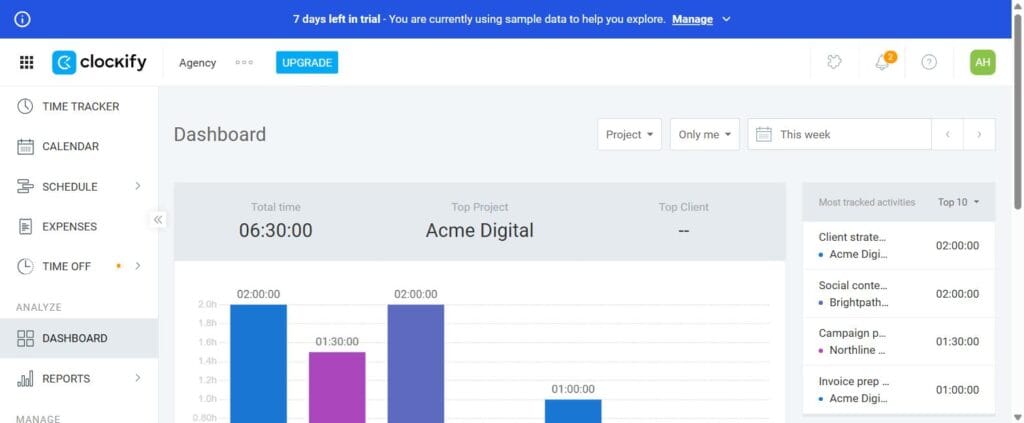
The one habit that makes this workflow accurate: log time the same day it happens, not Friday from memory. The automation pulls whatever is in Clockify — accurate daily entries produce an accurate weekly summary; Friday-from-memory entries produce an automated version of the same approximate data you already have.
Building the scenario in Make.com — step by step
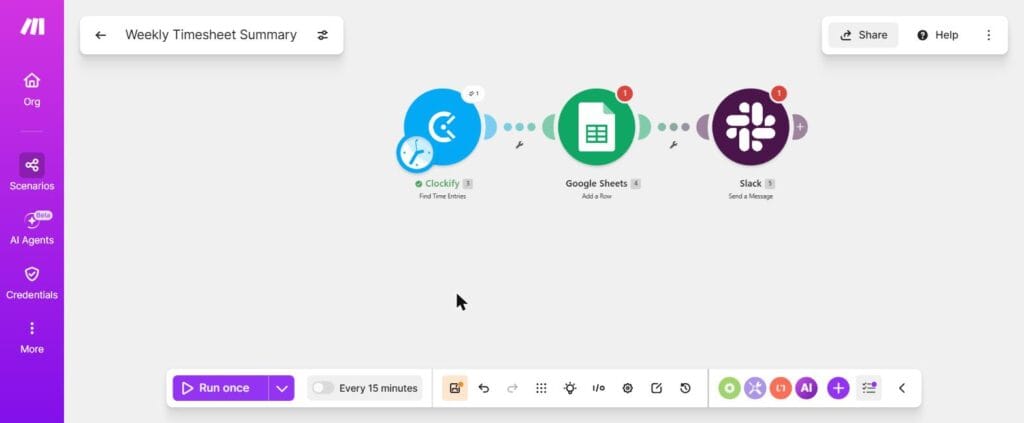
Create a new scenario and name it Weekly Timesheet Summary. The schedule trigger attaches to the Clockify module as a clock icon — click it, set Every Week, Friday, 4:00 PM.
Module 1 — Clockify: Find Time Entries
Search for Clockify and select Find Time Entries — the module name in Make’s interface, not ‘Get Time Entries’ as some older tutorials say. Connect your Clockify account using an API key from Preferences → Advanced → Manage API Keys. Set the date range to the current week. Leave Project ID blank to pull all projects. Leave Assignee ID blank — the dropdown shows Clockify’s seeded demo users, not your real account; leaving it blank returns all team members’ entries correctly.
When this module runs, it returns one bundle per individual time entry — not one bundle per project. A week with twelve individual logged entries across three projects returns twelve separate bundles. This matters for the next step.
Module 2 (optional but recommended) — Tools: Numeric Aggregator
Without an Aggregator, the downstream Sheets module writes one row per individual time entry — twelve rows for a week with twelve entries. If you want one row per project showing the total hours, add a Numeric Aggregator between Clockify and Sheets. Set it to group by Project ID and sum the Duration field. The Aggregator collapses the twelve entry bundles into three project bundles — one per project — before passing them to Sheets. If a detailed per-entry log is what you want, skip the Aggregator and connect Clockify directly to Sheets.
Module 3 — Google Sheets: Add a Row
Add Google Sheets and select Add a Row. Connect your Google account and select your timesheet log spreadsheet. Map the columns: Week Ending (use Make’s date function to calculate the Friday date), Project Name (from Clockify), Total Hours (from the Aggregator if you added one, or Duration if logging per entry), and Team Member if you want per-person rows. Each Friday run appends the new week’s data below the previous week’s rows — the sheet builds a running history automatically.
Module 4 — Slack: Send a Message
Add Slack and select Send a Message. Connect your workspace and choose your team channel. Build the message body using the Aggregator’s output: one line per project showing the project name and total hours. The message goes out at 4pm Friday whether or not anyone remembered to submit anything — which is the point. If a project shows zero hours, that is visible information, not a missing entry.
What Friday at 4pm looks like
- What appears in Google Sheets: one new row per project (with Aggregator) or one row per time entry (without), appended below last week’s rows. The sheet becomes a searchable log of every week’s hours going back to the first time the scenario ran.
- What the team sees in Slack: a structured message listing each project and its total hours for the week. No email, no spreadsheet attachment, no separate report to generate.
- What nobody has to do: send a chase email, compile a spreadsheet manually, or remember that Friday is timesheet day. The scenario runs regardless.
What to add next
- Connect hourly totals to invoicing: once the Sheets log is accurate, the data is ready to flow into a draft invoice. Our invoice follow-up workflow covers the automation layer for getting that invoice paid once it goes out.
- Add an under-hours alert: insert a filter before the Slack module that checks whether any team member’s total for the week is below a threshold — 20 hours for a full-time role, for example. If the total falls short, route a separate Slack message to you privately before the team summary fires.
- Send the summary to the client: for transparent billing relationships, add a Gmail module after Slack that sends each client their own project’s hours for the week — same data, different audience.
The honest limitations
The automated summary is only as accurate as the logged entries. If the team logs time at the end of the week from memory, the automation delivers a faster version of the same approximate data — not more accurate data. The workflow removes the chase and the compilation step; it cannot remove the estimation problem if the underlying habit is not there. This is the same stale-data principle as the invoice tracker in Article 03 and the CRM fields in Article 05: automation reads what is there, nothing more.
Clockify’s free plan covers the features this workflow needs — projects, time entries, and API access. The plan’s limits are worth checking at clockify.me/pricing before the team grows, since seat counts and reporting depth change at paid tiers. The trial banner that appears on a new account expires and drops to free automatically — you do not need to do anything to stay on the free plan.
