
The subcontractor status nobody can answer without three Slack searches
Ask an agency owner who is working on what this week, and the answer usually requires searching three separate Slack channels, checking a private Google Sheet, and scrolling through late-night DMs.
When freelancer assignments live across disconnected chat threads, deadlines slip through the cracks, project bottlenecks remain invisible, and team leads waste hours chasing manual updates.
Building an Airtable subcontractor tracker replaces scattered communication logs with a single, centralized database. By combining relational tables with native AI capabilities, agency leads can track freelancer workloads and generate real-time deliverable health reports automatically.
What this tracker does
This system structures all subcontractor assignments into a relational Airtable base, using a native AI field to analyze deliverable statuses and summarize project health on demand.
- Assignment logged: individual deliverables are created in an Assignments table and linked to both a specific project and a subcontractor profile.
- Status updated: the freelancer or account lead updates the assignment’s single-select status field (Not Started, In Progress, Blocked, Delivered).
- AI Field Agent runs: a custom AI field agent inspects all linked assignment records for a given subcontractor and generates a concise, plain-English status summary.
What you need before you build
Unlike automation pipelines that require connecting multiple external tools through Make, Zapier, or n8n, this entire tracking engine runs natively inside Airtable.
| Component | Minimum Required Tier | Role in System |
| Airtable Workspace | Team plan (with Airtable AI enabled) | Hosts the 3-table base and relational fields |
| Airtable AI Field Agents | Workspace AI add-on | Runs LLM reasoning across linked records directly inside a field |
| Interface Designer | Included on Team plan | Optional — a cleaner dashboard view for agency leads |
Because processing occurs directly within Airtable’s database engine, you don’t need external API webhooks or third-party middleware to generate real-time task summaries.
The one decision to make before automating this
Before creating tables or writing AI field instructions, define a strict status schema.
Over-engineering status fields is the fastest way to break a tracking workflow. If contractors must choose between too many overlapping options (Drafting, Internal Review, QA Pending, Client Review), data entry becomes inconsistent, and unclear field data leads to inaccurate AI summaries.
This build restricted the primary status field in the Assignments table to four clear categories:
- Not Started: brief delivered, work scheduled, but no active production has begun.
- In Progress: actively being worked on by the subcontractor.
- Blocked: work is halted due to missing assets, unanswered client questions, or scope dependencies.
- Delivered: work is completed and submitted for internal review or client sign-off.
Building the Airtable subcontractor tracker — step by step
Create three core tables in your base: Subcontractors, Projects, and Assignments.
Step 1: Set up the 3-table relational structure
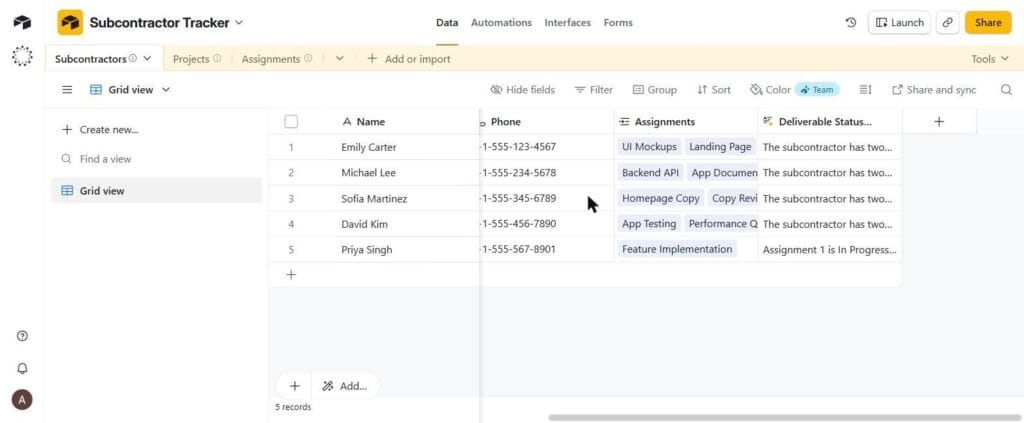
The Subcontractors table, linked to Assignments
The Subcontractors table acts as your central roster: Name (primary field), Contact Email, Phone, a linked-record field pointing to Assignments, and a Long Text “Deliverable Status Summary” field with AI enabled.
The Projects table tracks overarching client engagements: Project Name (primary field) and a linked-record field pointing to Assignments.
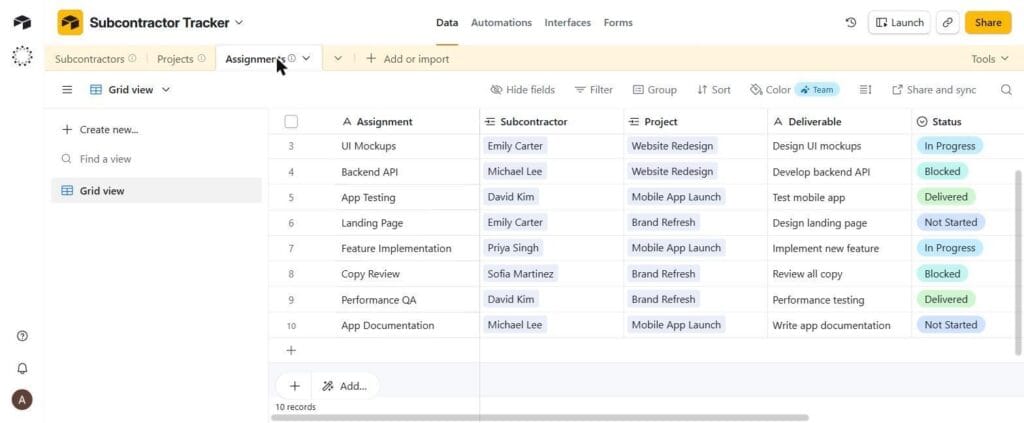
The Assignments table — the primary tracking log
The Assignments table is the primary tracking log: Assignment (primary field), a linked Subcontractor field, a linked Project field, a Deliverable description, and the Status single-select field.
Step 2: Configure the AI Field Agent
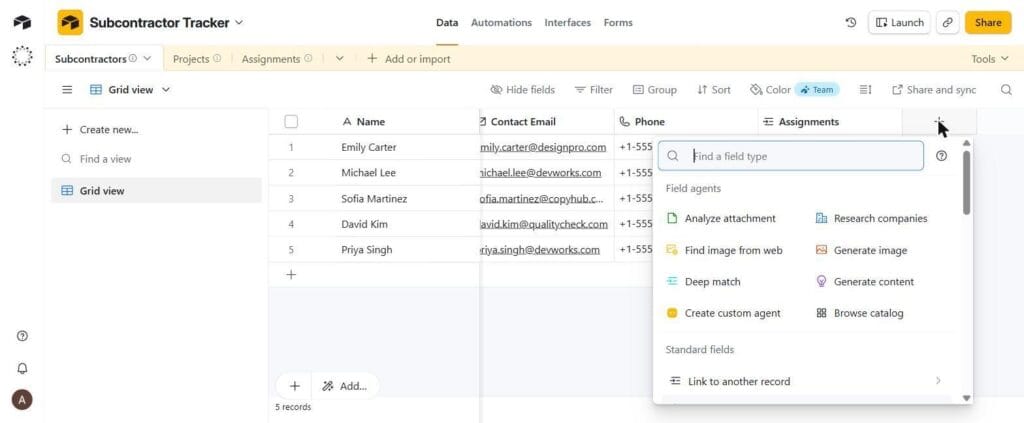
Adding a field — the Field agents category, including “Create custom agent”
In the Subcontractors table, click the + icon to add a new field, then choose Create custom agent from the Field agents section (or select Long text and open the AI configuration panel from there). Name the field “Deliverable Status Summary,” set the type to Long text, and set the Model to Default (GPT-4.1).
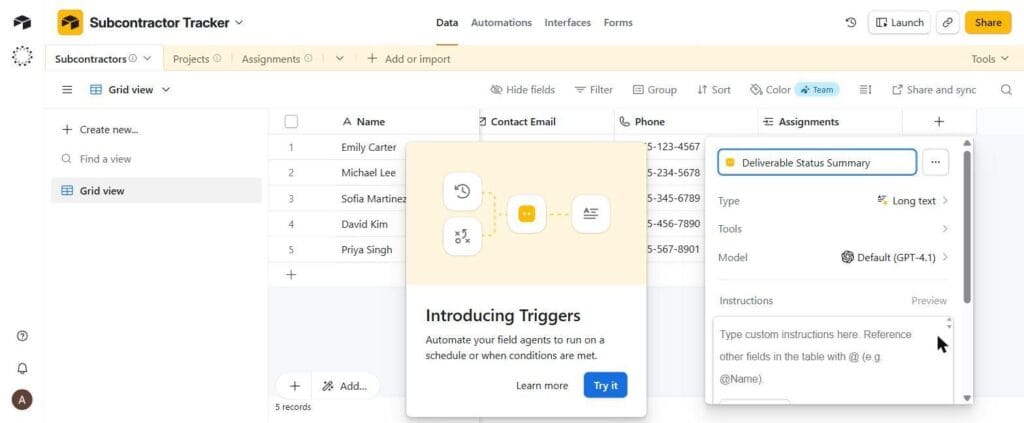
The field agent configuration panel
In the instructions panel, the actual prompt configured for this build directed the agent to act as an operational project manager reviewing the linked Assignments records for each subcontractor, and to summarize the assignment count, each one’s status (calling out anything Blocked or Delivered), and to explicitly note if no other assignments exist.
Step 3: Airtable AI Field Agents and automated triggers
Airtable’s native field capabilities now include schedule- and condition-based execution rules, called Triggers — new enough that it surfaced as an in-product announcement mid-build rather than something documented elsewhere yet.
Historically, AI fields ran either on every referenced field change or required manual generation clicks. With automated triggers, agency leads can configure Airtable AI Field Agents to run on a schedule (e.g., every Monday morning before a team sync) or only when a condition is met (e.g., when an assignment’s status changes to Blocked or Delivered), avoiding unnecessary runs on minor edits.
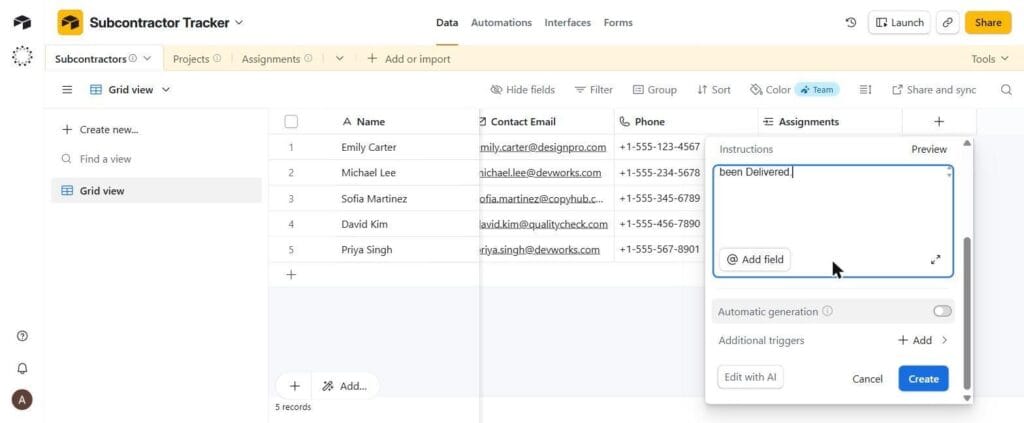
Additional triggers — schedule-based and condition-based field agent runs
To configure triggers: open the field settings for Deliverable Status Summary, click Additional triggers, choose a schedule or a condition, and save the field configuration.
What the AI summary actually looks like
Once configured, the AI field evaluates linked assignment data and generates plain-English status summaries directly inside the grid view.
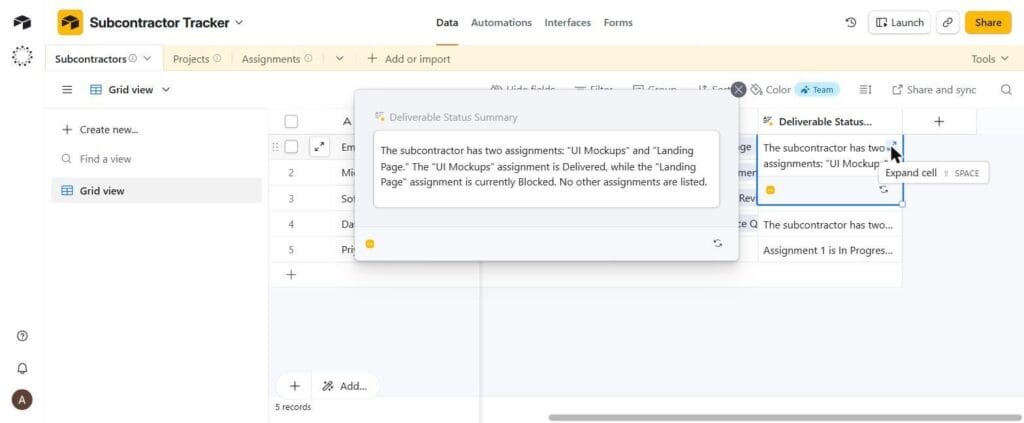
The generated summary for Emily Carter, expanded
Looking at the record for Emily Carter, who has two linked deliverables (UI Mockups, marked Delivered, and Landing Page, marked Blocked), the AI field generated this exact output:
“The subcontractor has two assignments: ‘UI Mockups’ and ‘Landing Page.’ The ‘UI Mockups’ assignment is Delivered, while the ‘Landing Page’ assignment is currently Blocked. No other assignments are listed.”
The underlying data confirms the same pattern holds across other records: Michael Lee’s linked assignments are Backend API (Blocked) and App Documentation (Not Started); Sofia Martinez’s are Homepage Copy (Not Started) and Copy Review (Blocked); David Kim’s are App Testing and Performance QA, both Delivered. Agency leads can scan a single column to review operational status across all active freelancers without opening individual task records.
What to add next
Link to subcontractor SOP documents: add an attachment or URL field in the Assignments table pointing to your agency’s standard operating procedures (following our workflow documentation framework), so freelancers can see delivery requirements directly on the task record.
- Build a “Blocked” triage interface view: a dedicated Interface view filtered strictly to Status = Blocked, for use in weekly operations meetings.
- Document base maintenance via an AI SOP assistant: write clear data-entry protocols for project managers, so the tracker stays reliable as more people touch it.
The honest limitations
First, AI Field Agent configurations and UI controls evolve rapidly — this build itself surfaced a brand-new Triggers capability mid-session. Review your base configuration periodically to confirm field prompts and trigger rules still perform as expected.
Second, this base tracks deliverable status, not legal or financial operations. It organizes work and surfaces operational risk — it does not replace dedicated software for contracts, tax documentation, or payout processing.
Finally, AI output depends entirely on consistent human data entry. The agent can only surface accurate risk if team leads and subcontractors actually keep status fields updated.
