
Why agencies wait 45 days to get paid on 14-day terms
Most late payments at a small agency are not caused by bad clients. They are caused by the person who is owed the money. You finish the work, you send the invoice, and then the due date passes quietly. You notice, but you put off the reminder because writing it feels uncomfortable. A few days later it feels worse, because now you also have to explain why you waited. So you delay again. The invoice that should have been paid in 14 days gets paid in 45, and the only thing that happened in between was you avoiding an awkward email. Automation fixes this in a way willpower never will: the email goes out whether or not you feel like writing it.
What this workflow does every morning
One scheduled run, zero decisions from you — here is what happens at 9:00 every morning:
- Make.com opens your invoice tracker sheet →
- It pulls every invoice marked Unpaid whose due date has passed →
- Invoices 3 or more days overdue get a friendly reminder email, sent from your own Gmail →
- Invoices 14 or more days overdue get a firmer follow-up instead →
- Each reminder that goes out triggers its own Slack notification to you, so you always know which client was contacted and which template they received
What you need before you build
Four tools, all with free plans. You do not need invoicing software for this to work — the Google Sheet is the tracker, so it sits alongside Wave, QuickBooks, or plain PDF invoices without touching any of them. If you have not reviewed what your agency already pays for, our agency stack audit is the place to start.
| Tool | Role in workflow | Free plan available? |
| Make.com | Runs the daily check and sends everything | Yes — 1,000 free operations per month (verified July 2026) |
| Google Sheets | The invoice tracker — your single source of truth | Yes — standard Google account |
| Gmail | Sends the reminder emails from your own address | Yes — standard Google account |
| Slack | Notifies you each time a reminder goes out | Yes — free workspace |
Set up the invoice tracker sheet first
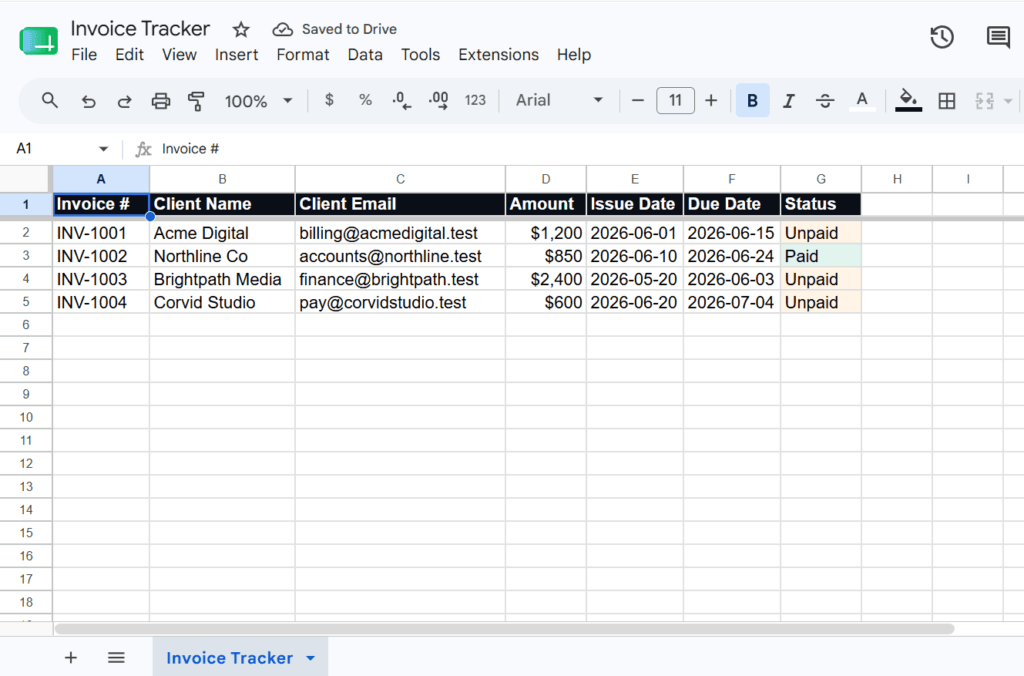
Create a Google Sheet named Invoice Tracker with seven columns: Invoice #, Client Name, Client Email, Amount, Issue Date, Due Date, and Status. Every invoice you send gets one row. The Status column only ever holds two values: Unpaid or Paid.
The whole system depends on one manual habit: when a client pays, you change that row’s Status to Paid. That is the only thing you ever have to remember. Miss it, and the automation will keep reminding a client who already paid — which is worse than no automation at all. It takes five seconds, and it is the entire price of never writing a chasing email again.
Building the workflow in Make.com — step by step
Open Make.com, create a new scenario, and rename it Invoice Follow-Up. If this is your first time in Make.com, our Make.com client onboarding tutorial walks through the basics of the canvas.
Step 1 — Add Google Sheets and set the daily schedule
Click the big plus in the middle of the canvas, search for Google Sheets, and choose the Search Rows action. Connect your Google account and select your Invoice Tracker sheet. You will notice a small clock icon attached to the module — that clock is the schedule for the whole scenario. Click it, set it to run every day, and set the time to 09:00. From now on, this scenario wakes up once every morning on its own.
Step 2 — Set the search filter
Inside the Search Rows settings, set the filter to match rows where Status equals Unpaid and Due Date is earlier than today. This pulls every overdue, unpaid invoice into the scenario each morning. Paid invoices are ignored completely, no matter how old they are.
Step 3 — Add the Router and split by how overdue
Click the plus on the right edge of the Google Sheets module and add a Router — you will find it under Flow Control, not in the app search. The Router splits your scenario into two paths, which Make.com labels 1st and 2nd. Click the dotted line on the first path and add a filter: Due Date is 3 or more days ago but less than 14. On the second path, add a filter for 14 or more days ago.
One thing worth knowing: an invoice that is only 1 or 2 days overdue matches neither path, so nothing happens to it. That is deliberate. It gives every client a short grace window before the first reminder — nobody gets chased for being a day late.
Step 4 — Add a Gmail module to each path
At the end of each Router path, add a Gmail module with the Send an email action — one per path, two in total. Map the To field to the Client Email column from your sheet. The first path gets the gentle template below; the second path gets the firmer one. Because the emails come from your own Gmail address, the client receives a normal email from you — not a message from a billing robot.
The two reminder templates
Template 1 — sent at 3+ days overdue:
Subject: Following up on Invoice [Invoice #]
Hi [Client Name], just a quick note — invoice [Invoice #] for [Amount] was due on [Due Date] and I have not seen the payment come through yet. No problem if it is already on the way. If anything is holding it up on your end, just let me know. Thanks!
Template 2 — sent at 14+ days overdue:
Subject: Invoice [Invoice #] — now [X] days overdue
Hi [Client Name], following up again on invoice [Invoice #] for [Amount], which was due on [Due Date] and is now overdue. Could you let me know when we can expect payment? If there is an issue with the invoice itself, I am happy to sort it out quickly. Thanks for taking care of this.
That is as far as automation goes. If an invoice is still unpaid after the second reminder, that is a phone call or a direct conversation — not a third template. Automation handles the routine chasing; it should never handle a payment dispute.
Step 5 — Add a Slack notification to each path
After each Gmail module, add a Slack module — again, one per path, two in total. When you search Slack’s action list, you will not find anything called Create a Message. The action you want is Send a Message. And be careful: Create a Channel sits right nearby in the same list, and if you grab it by mistake, every overdue invoice will spawn a brand-new channel in your workspace instead of sending you a notification. Choose your channel and write a short message using the sheet fields — something like: Gentle reminder sent to [Client Name] for [Invoice #] ([Amount]). On the second path, change the wording to say a firm follow-up went out. Now every notification tells you exactly who was contacted and which template they got.
What this looks like when it runs
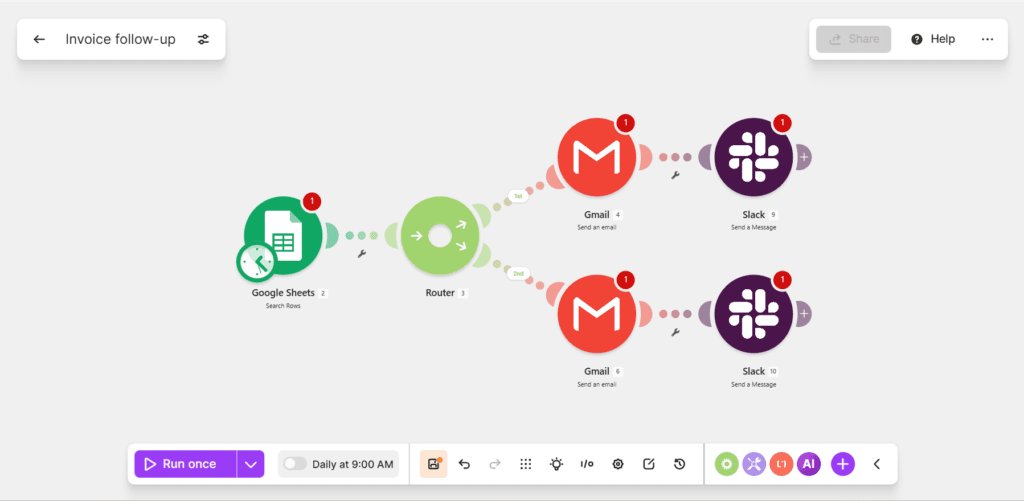
The screenshot above shows the finished canvas: the Google Sheets module with its clock, the Router, and two parallel paths that each run Gmail and then Slack. The paths never rejoin — each one is its own complete lane.
Here is what each part of the system produces on a real morning:
- What the client receives: a short, polite email from your actual Gmail address, personalized with their name, the invoice number, and the amount. It reads like you wrote it that morning, because as far as they can tell, you did.
- What you see in Slack: one notification per reminder sent. The gentle-path message tells you a friendly nudge went to a specific client; the firm-path message tells you a stronger follow-up went out and flags that this invoice may need your attention soon.
- What happens in the sheet: nothing. The automation only reads your tracker — it never writes to it. That is deliberate: your financial records stay entirely under your control, and the only hand that ever edits them is yours.
What to add next
- Log every sent reminder to a second sheet tab, so you build a paper trail of exactly when each client was contacted.
- Add a third Router path for invoices 30 or more days overdue that alerts only you — privately — instead of emailing the client a third time.
- Once your invoice volume grows, connect your invoicing tool’s API directly so the tracker updates itself when payments land.
Proposal and contract automation
The honest limitations
This system is exactly as accurate as your sheet. If a client pays and you forget to flip their row to Paid, the automation will send them a reminder for an invoice they already settled — which is more damaging to the relationship than any late payment. The fix costs ten seconds a day: when the Slack notifications come in each morning, glance at the names. If you see a client you know has paid, fix the row before tomorrow’s run.
The Make.com free plan comfortably covers this workflow at small-agency volume, but the math is worth knowing. The scenario consumes operations every morning it runs — even on days when no invoices are overdue, the schedule triggers and the sheet search still counts. With a handful of overdue invoices a week, you will use a small fraction of the 1,000 free monthly operations. If you stack several daily scenarios on one free account, watch the total, because Make.com pauses your scenarios when the allowance runs out and quietly stops your reminders with them.
